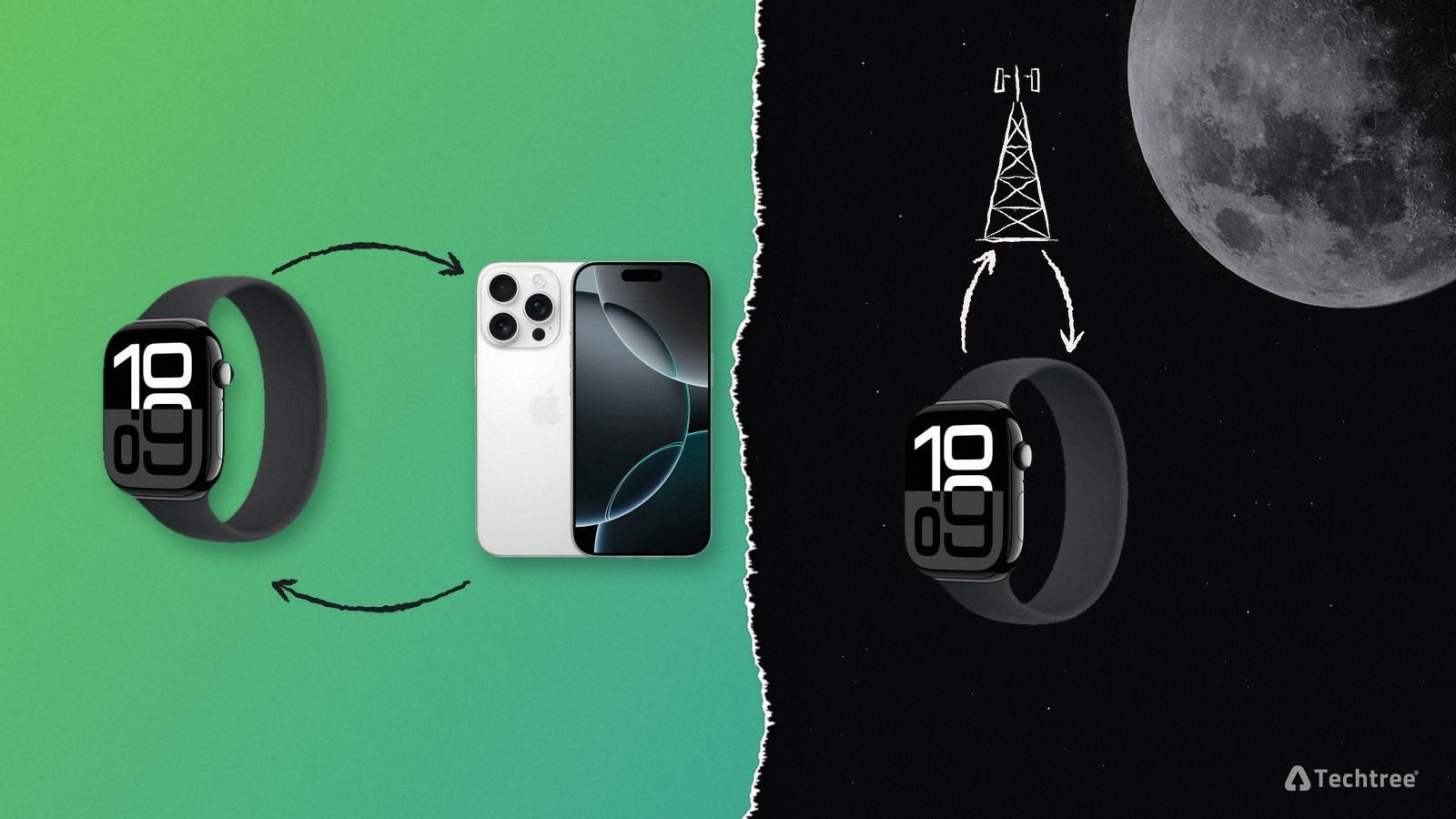
The single most important thing to know before you reset an Apple Watch: erasing the watch and removing Activation Lock are two different actions, and doing the first does not do the second. Apple's own documentation is explicit about it. Erase the watch from the watch itself and it "restores it to factory settings, but doesn't remove Activation Lock." The watch comes back looking brand new, still tied to the original Apple Account, and still useless to anyone else.
That is by design. It is the anti-theft system working exactly as intended. It is also why a wiped watch can arrive at a buyback company, a repair shop or a new owner and be worth nothing until the original owner clears it, which takes about thirty seconds if you still have the paired iPhone, and can be impossible if you do not.
This guide covers every reset method, when to use each one, and how to actually clear Activation Lock.
At a glance:
- Erasing an Apple Watch does not remove Activation Lock. Unpairing it from the paired iPhone erases the watch and removes the lock in one step.
- If the watch is already erased or gone, remove it from your Apple Account at iCloud.com/find.
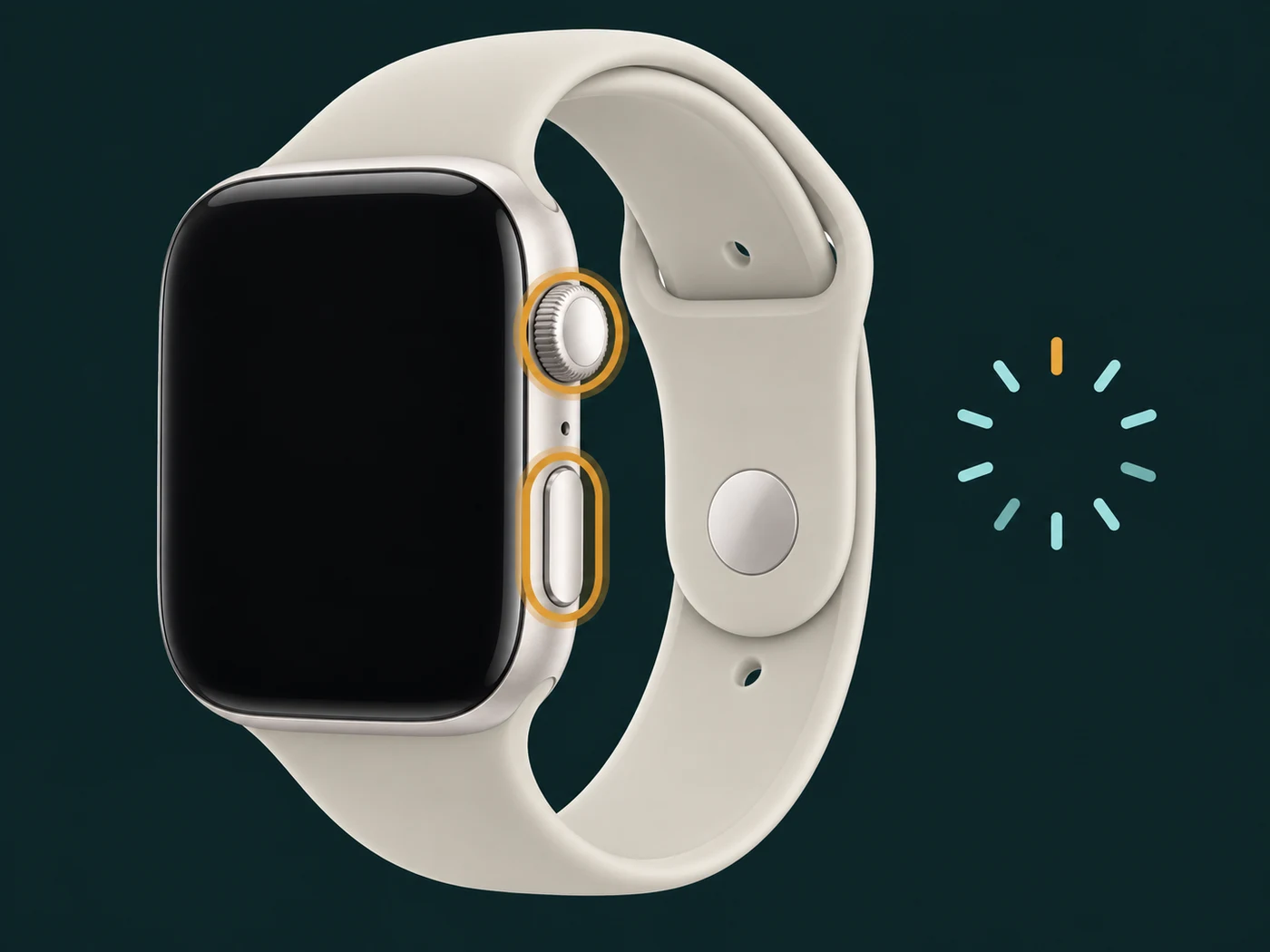
- A frozen watch needs a force restart (side button and Digital Crown for at least 10 seconds), not a reset.
- Techtree cannot buy an Apple Watch that is still Activation Locked. Once the lock is cleared, Techtree buys it as it is, including with a cracked screen or a battery below 80 percent.
Which reset do you need?
People arrive at this page wanting four very different outcomes, and picking the wrong one either loses your data or leaves the lock in place.
| You want to | Do this | Removes Activation Lock? |
|---|---|---|
| Fix a frozen or unresponsive watch | Force restart | No, and it erases nothing |
| Clear a glitch but keep the watch | Erase all content and settings, then restore | No |
| Sell, trade in, or give the watch away | Unpair from the paired iPhone | Yes |
| Get past a forgotten passcode | Erase on the charger with the Digital Crown | No |
The one row that matters most is the third. If your watch is leaving your possession for any reason, unpairing from the iPhone is the only method that both erases the watch and clears the lock in one step.
Method 1: Force restart a frozen Apple Watch
This is not a reset. It erases nothing and it is the correct first move when a watch is stuck, black, or ignoring taps. People skip straight to a factory reset and lose their data over what is usually a software hang.
- Press and hold the side button and the Digital Crown at the same time.
- Hold for at least 10 seconds, which feels longer than you expect.
- Let go when the Apple logo appears.
If the watch is simply unresponsive but not frozen, the gentler version is to hold the side button until the Power Off slider appears and drag it, then hold the side button again to power back on.
If a force restart fixes it, stop here. You do not need anything else on this page.
Method 2: Erase the watch but keep it
Use this when the watch is staying with you and you want a clean slate: a persistent bug, a watch that will not pair properly, or handing it to a family member who will use it on your account.
On the watch:
- Open Settings on the Apple Watch.
- Tap General, then Reset.
- Tap Erase All Content and Settings.
- Enter your passcode if prompted.
- On a GPS + Cellular model, choose whether to keep or remove the cellular plan. Keep it if you are staying with the same carrier and watch.
- Tap Erase All to confirm.
From the paired iPhone instead: open the Apple Watch app, go to My Watch, then General, then Reset, then Erase Apple Watch Content and Settings.
What this does: wipes media, data and settings, and restores factory settings. What it does not do: remove Activation Lock. Your Apple Account is still attached.
Method 3: Reset a passcode-locked Apple Watch
This is the one people cannot find, because there is no "forgot passcode" link on the watch face. Too many wrong attempts and the watch disables itself, and if you never paired it to an iPhone you still have, the usual route is closed.
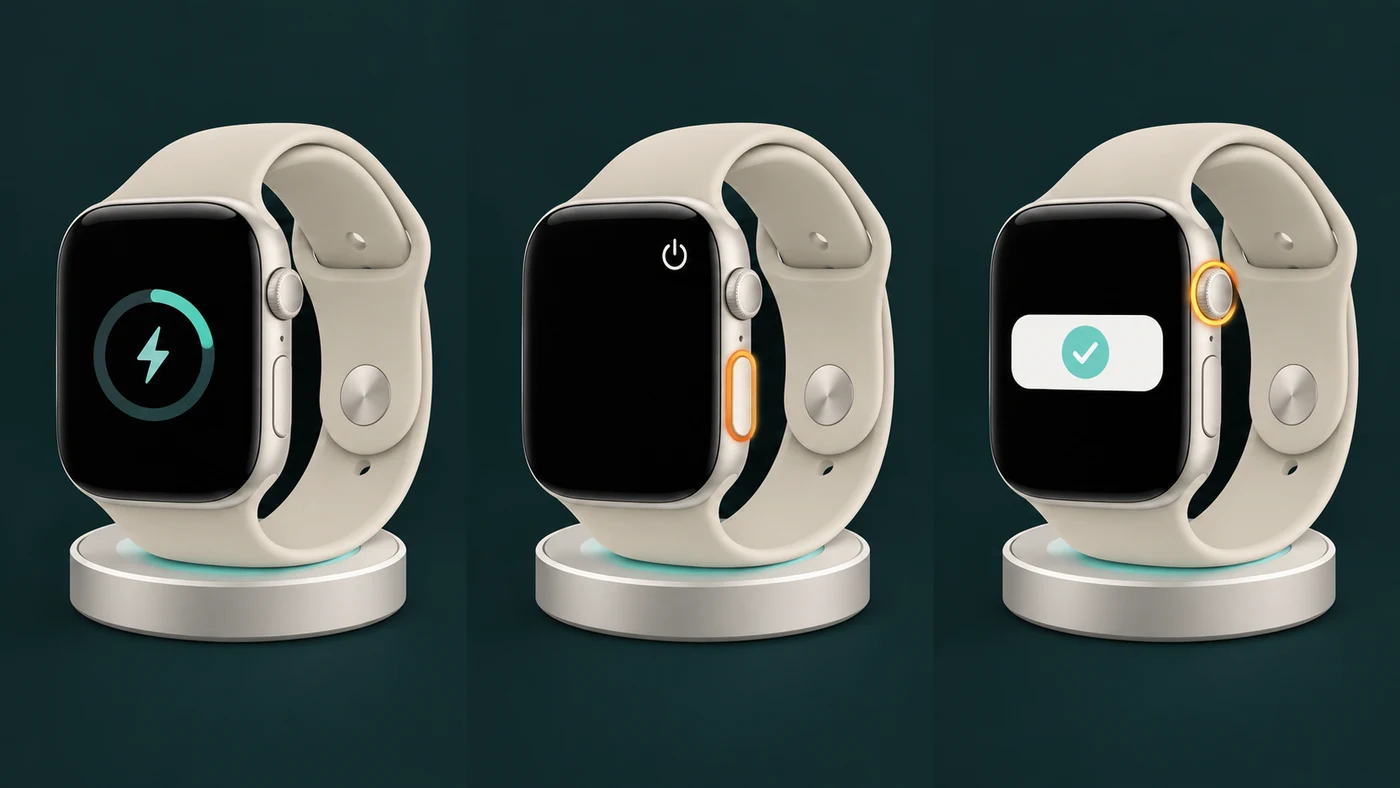
The watch must be on its charger for this to work.
- Put the Apple Watch on its charger and leave it there for the whole process.
- Press and hold the side button until the power button appears in the upper-right corner.
- Now press and hold the Digital Crown until Erase all content and settings appears.
- Tap Reset, then tap Reset again to confirm.
- Wait for it to finish, then set it up again and restore from a backup when offered.
If you do still have the paired iPhone, the easier path is the Apple Watch app: My Watch, then General, then Reset, then Erase Apple Watch Content and Settings. You may be asked for your Apple Account password.
Two things worth knowing. A backup of the watch lives on the paired iPhone and is made automatically during unpairing, so restoring is usually painless. And again, per Apple: this "does not remove Activation Lock."
Method 4: Reset a watch you are selling
If the watch is leaving you, do this one and nothing else. It is a single flow that erases the watch, removes Activation Lock, backs the watch up, and handles the cellular plan.
- Put the Apple Watch and its paired iPhone next to each other.
- On the iPhone, open the Apple Watch app.
- Tap the My Watch tab, then All Watches at the top.
- Tap the info button (i) next to the watch you are removing.
- Tap Unpair Apple Watch, then confirm.
- On a cellular model, choose Remove Cellular Plan if you are done with the watch.
- Enter your Apple Account password when prompted. This step is the one that turns Activation Lock off. If you are not asked for it, you are not doing this flow.
- Let the iPhone finish the backup and the unpair.
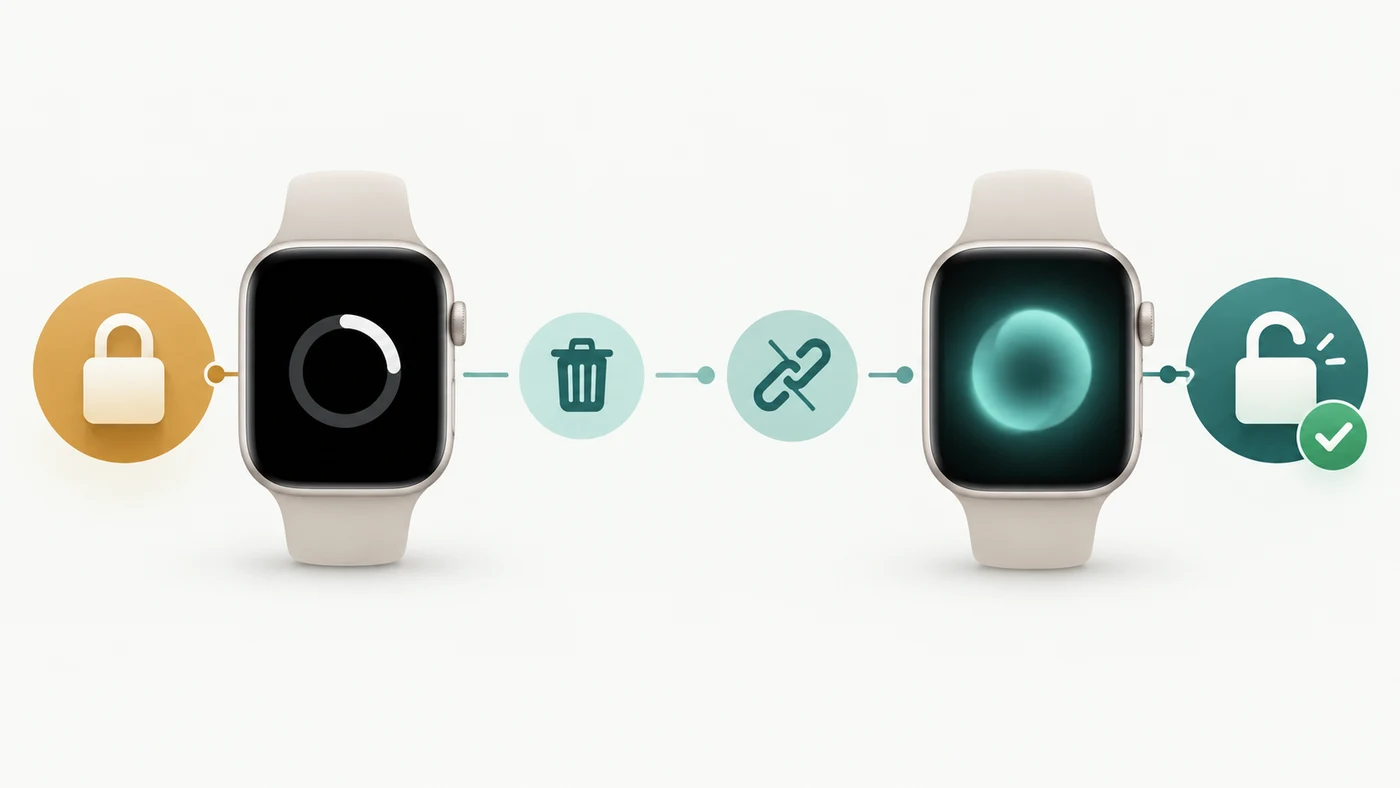
In Apple's words: "Unpairing erases your Apple Watch, restores it to factory settings, and removes Activation Lock."
One loose end: if the watch has cellular, removing the plan on the watch is not the same as cancelling the line with your carrier. Call the carrier separately or you can keep paying for a watch you no longer own.
Is your watch still in Find My?
Here is the scenario we see constantly. Someone wipes a watch using Method 2 or Method 3, sees a fresh "Hello" setup screen, and reasonably assumes it is a clean device. It is not. The watch is still listed in their Apple Account, still protected by Activation Lock, and the next person to set it up gets asked for an Apple Account password they do not have.
How to tell it is still locked: during setup the watch asks for the previous owner's Apple Account email and password. That prompt means Activation Lock is on. There is no way around it on the device.
If you still have the watch
Pair it back to your iPhone if you can and run Method 4. That is the cleanest fix.
If the watch is already erased, or already gone
Remove it from your account remotely:
- Go to icloud.com/find and sign in with your Apple Account.
- Click All Devices at the top, then click your Apple Watch in the list.
- Click Erase Apple Watch and confirm. If it is already erased, this still queues the command.
- After it is erased, click Remove (the X next to the device). This is the step that actually detaches it from your account.
You can do the same from the Find My app on an iPhone or iPad signed in to the same Apple Account: Devices, select the watch, scroll down, then Erase This Device, and afterwards Remove This Device.
The order matters. Removing before erasing, or erasing without removing, leaves you halfway. Erase first, then remove.
If you bought a locked watch from someone else
This is the hard case, and the honest answer is unwelcome. Only the original owner can remove Activation Lock, using their Apple Account password or their iCloud account. Apple Store staff cannot clear it over the counter. A repair shop cannot clear it. It is not a software bug to be worked around, it is the point of the feature.
Your options, in order:
- Contact the seller and ask them to run the icloud.com/find steps above. It takes them under a minute and costs them nothing.
- Open an Activation Lock support request with Apple if you have documentation proving lawful purchase. The strongest proof is an original receipt or invoice showing the watch's serial number. A marketplace message thread is usually not enough.
- Return it and get your money back if the seller goes quiet. A locked watch is, functionally, a paperweight.
A firm warning: every service advertising Activation Lock removal, bypass or unlocking is a scam, illegal, or both. Do not pay them, and never hand over your Apple Account credentials to one. If a bypass existed, the theft deterrent would not work, which is precisely why it does not exist.
Trading in your Apple Watch
We will not make an offer on a locked device, and neither will anyone else reputable. A watch still tied to an Apple Account cannot be resold or refurbished, so its trade-in value is zero until the lock is cleared. That is the single most common reason a watch arrives here and stalls.
Clear it before you ship, and the watch is worth what a working watch is worth. As of November 4, 2026, in good condition, complete and working:
| Model | Good condition, up to |
|---|---|
| Apple Watch Series 12 | $521 |
| Apple Watch Ultra 4 | $421 |
| Apple Watch Ultra 3 | $323 |
| Apple Watch Series 11 | $277 |
| Apple Watch Ultra 2 | $226 |
| Apple Watch Series 10 | $164 |
| Apple Watch Series 9 | $107 |
| Apple Watch SE (3rd Gen) | $68 |
Prices are what we pay for the best configuration and change with the daily review. Every model we buy is in our trade-in price index, and what your Apple Watch is worth takes about thirty seconds to check. Selling an Ultra? Apple Watch Ultra 1 vs 2 vs 3 vs 4 compares every generation in every condition. Selling a Series or an SE? Apple Watch Series 5 to Series 12 matches every model number to what it is worth today, and a watch still in its box is covered in selling an unopened Apple Watch.
The pre-shipping checklist
- Unpair from the iPhone (Method 4). Not an on-watch erase.
- Confirm it is gone from Find My. Open Find My, look at Devices. If the watch is still listed, it is still locked.
- Cancel the cellular line with your carrier if it had one.
- Include the charger. The quote asks what you are including, and the offer it shows already accounts for anything you leave out.
- Grade it honestly. Our grading criteria are plain English, and the number you pick is the number you get paid if it matches.
If you are weighing the upgrade, our iPhone 18 launch breakdown runs the same math across this year's new Apple hardware, and our guide to carrier trade-in versus selling it yourself covers where a buyback service wins and where it does not.
Frequently asked questions
Does a factory reset remove Activation Lock? No. Only unpairing from the paired iPhone, or removing the watch from your Apple Account at icloud.com/find, removes it.
Can I reset an Apple Watch without the paired iPhone? Yes, using the charger method in Method 3. The watch will be erased, but it stays Activation Locked to the original Apple Account.
Can I reset an Apple Watch without the passcode? Yes, same method. The passcode is not required for the charger and Digital Crown route.
Will resetting remove my cellular plan? You are asked during the reset. Removing the plan on the watch does not cancel the line with your carrier, which is a separate call.
Will I lose my activity and health data? Health and activity data lives on the paired iPhone and in iCloud, not only on the watch, and unpairing creates a backup on the iPhone first.
How long does a reset take? The erase itself is a few minutes. Unpairing takes longer because it backs the watch up first.
Is a wiped but locked watch worth anything? For a trade-in, effectively no. Clear the lock first.
Can I sell an Apple Watch with a cracked screen? Yes. A cracked display with everything else working is Techtree's Minor Damage grade, as long as Activation Lock is off; see what a cracked Apple Watch is worth.
Sources
- Unpair and erase your Apple Watch, Apple Support
- If you forgot your Apple Watch passcode, Apple Support
- What to do before you sell, give away, or trade in your Apple Watch, Apple Support
- About Activation Lock on your Apple Watch, Apple Support
- How to remove Activation Lock, Apple Support
- Remove a device from Find Devices on iCloud.com, Apple Support
- Restart Apple Watch, Apple Watch User Guide
- How to unpair and reset your Apple Watch (video), Apple Support
Steps verified against Apple's published documentation on September 19, 2026. watchOS menus move between versions; if a menu name differs on your watch, the Apple Support article for your watchOS version is the authority.